Narrate my text: a voice over your background video
Turn a book chapter, story, ghazal, shayari, quotes or a meditation script into narrated clips with captions, over a background from our library or your own video. All plans
Choose Narrate my text
Where: 📍 Clips → What do you want to make? → Narrate my text
Under What do you want to make?, pick Narrate my text. A box opens for your text. Only the narration's length counts toward your minutes.
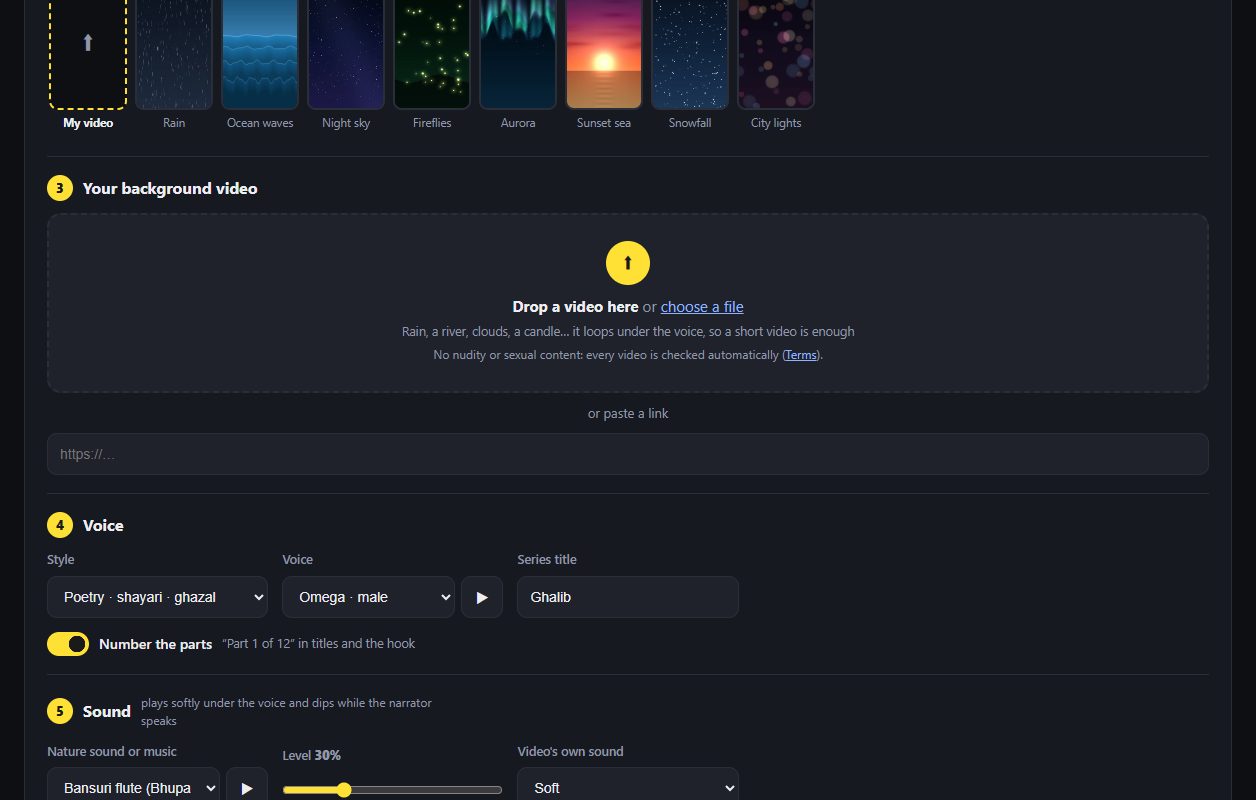
Pick a background
Where: 📍 Clips → Narrate my text → Background
Pick a background from the library: Rain, Ocean waves, Night sky, Fireflies, Aurora, Sunset sea, Snowfall or City lights (hover to see it move). Nothing to upload. Or choose My video and drop your own clip of a river, clouds or trees above: it loops under the voice, so 10 to 30 seconds is enough.
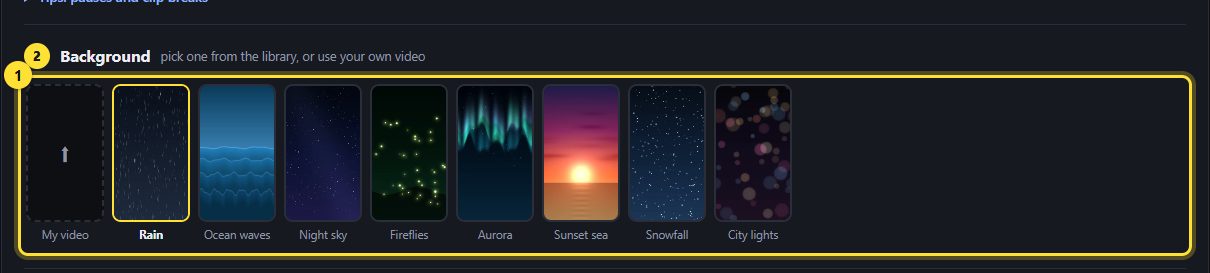
Paste your text and pick a style
Where: 📍 Clips → Your text / Style
Paste your text, up to about 2 hours of reading. Under the box you'll see how long the narration will be and about how many clips you'll get. Then pick a Style: - Book / story: read naturally, captions word by word. - Poetry · shayari · ghazal: slower, with a pause after every line and a longer one after each verse; each line shows on screen. - Quotes · motivation: one quote per clip. - Guided meditation: slow and calm, with long pauses between sentences.
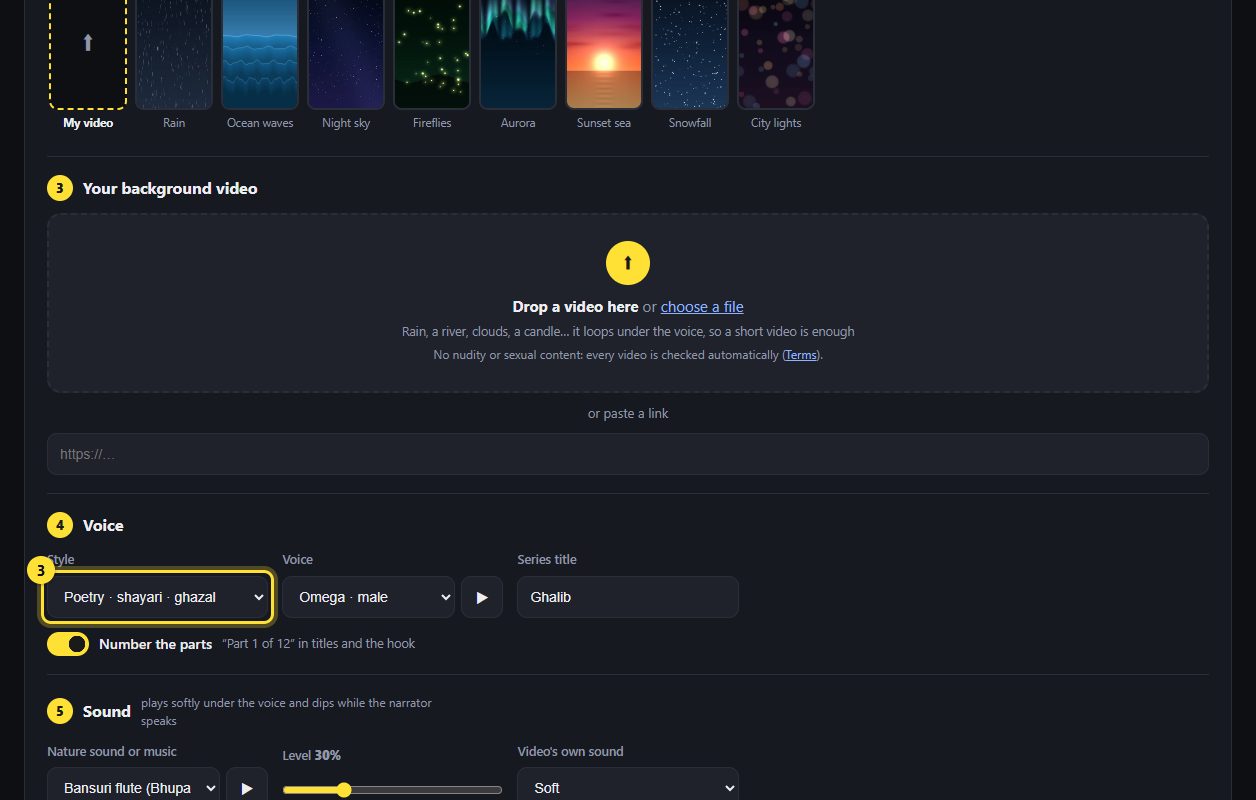
Choose a voice and listen
Where: 📍 Clips → Voice → ▶ Listen
Pick a Voice: English (US and UK), Hindi, Spanish, French, Italian and Portuguese, female and male. Press ▶ Listen to hear it first. Write Hindi and Urdu poetry in Devanagari (हिंदी) letters so the Hindi voice reads it correctly. Add an optional Series title, e.g. the book's name, shown as “Series · Part 3 of 40”. Untick Number the parts if you don't want “Part 1 of X” in the titles: each clip is then titled by its own first words.

Add a nature sound or calm music
Where: 📍 Clips → Narrate my text → Nature sound or music
Pick a sound to play softly under the voice: Nature (Rain, River stream, Ocean waves, Wind, Forest birds, Night crickets, Campfire) or Calm music (Bansuri flute, Tanpura drone, Singing bowl, Soft keys). Press ▶ Listen to hear it, and set the Level (30% suits most voices). It fades in and out and dips a little whenever the narrator speaks, so the words stay clear. Choosing the Poetry style suggests the flute, and Guided meditation the singing bowl. Video's own sound is the sound already in your background video.

Also get one full-length video
Where: 📍 Clips → Narrate my text → Also make one full-length video
Tick Also make one full-length video (Creator plan and up) to get the whole narration as one wide 16:9 video for YouTube as well, with chapters for every part in its description. It isn't posted automatically: schedule it yourself (YouTube only), or download it. YouTube allows videos over 15 minutes once your channel is verified.

Preview before you make the clips
Where: 📍 Clips → Narrate my text → 🎧 Preview
Press 🎧 Preview to hear and see the first 30 or 50 seconds: your voice, style, captions, background and sound together, at the level you chose. It's free and doesn't use your minutes. Not right? Change the voice, the sound or its level, or edit the text, and preview again. If you're using your own video, a plain background is shown in the preview.

Control pauses and clip breaks
Where: 📍 Clips → Your text
The whole text is read in order and split at natural breaks into as many clips as it needs (the Length setting is the length of each clip). To control it yourself, type [pause 3] for a 3-second pause, or --- on its own line to start a new clip there. A blank line starts a new paragraph or verse. When it's ready, every clip is titled and numbered, with your text in the description, ready to download or schedule. After you click Make narrated clips, the page takes you to the new video's progress card; click Narrate another text to start the next one. Voices: Kokoro-82M (Apache-2.0). Caption translation: OPUS-MT and Argos Translate models (CC-BY 4.0, Helsinki-NLP / Argos Open Tech). Everything runs on Clipper360's own servers.
![The tips under the text box explaining [pause 3] and ---.](/static/guide/img/narrate-text-4.jpg?v=2026-10-18)
Still stuck? Raise a support ticket and we'll help.